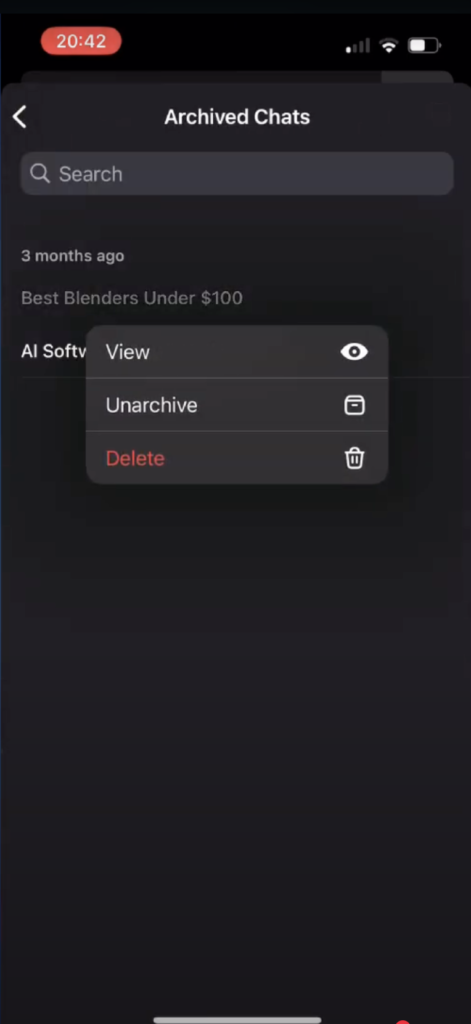

You may have accidentally archived a conversation on ChatGPT, and cannot find where it is stored. Well, in this step-by-step guide, we’ll be showing you how to find, unarchive and even delete archived chats on both desktop and mobile. If you’d rather follow along with a video, I’ve also created a full length YouTube video which you can watch here:
How To Access Archived Chats On ChatGPT (Desktop)?
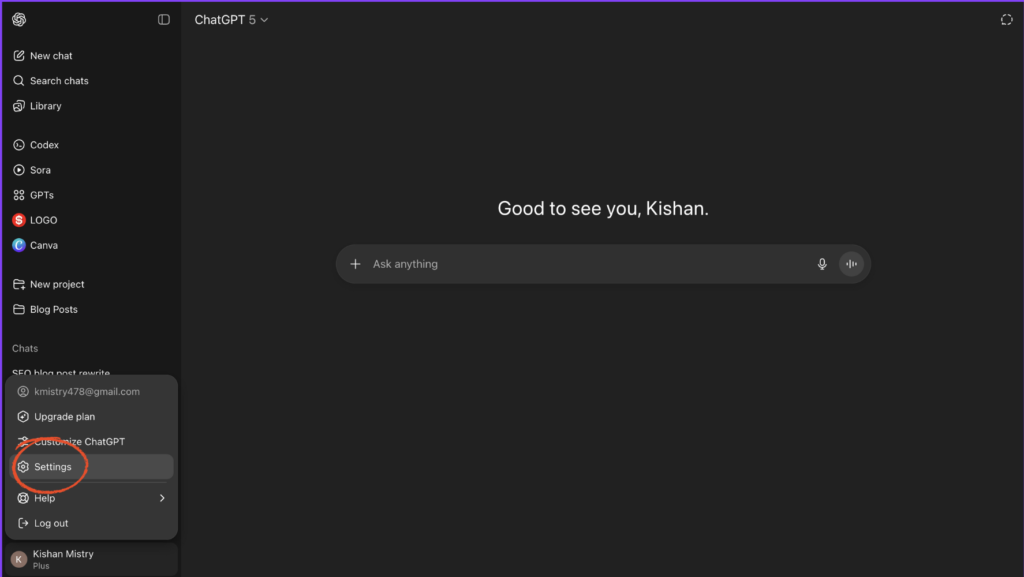
- Select your profile in the bottom left of the sidebar, and click “Settings”:
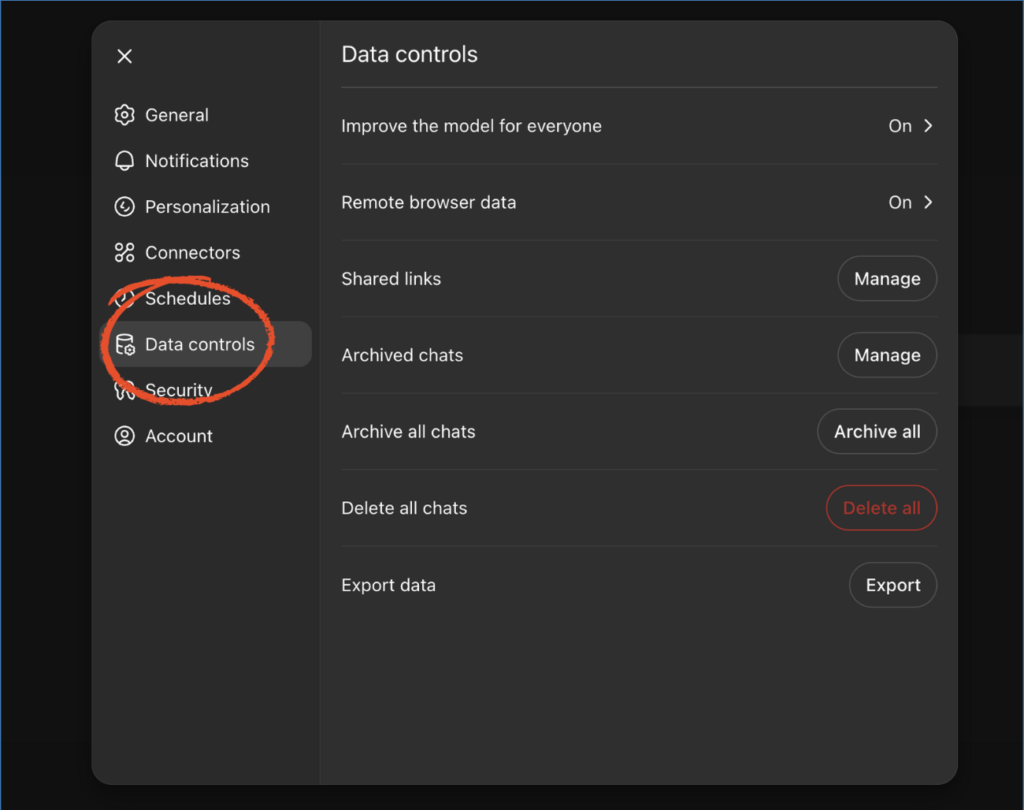
- On the settings window select “Data Controls”:
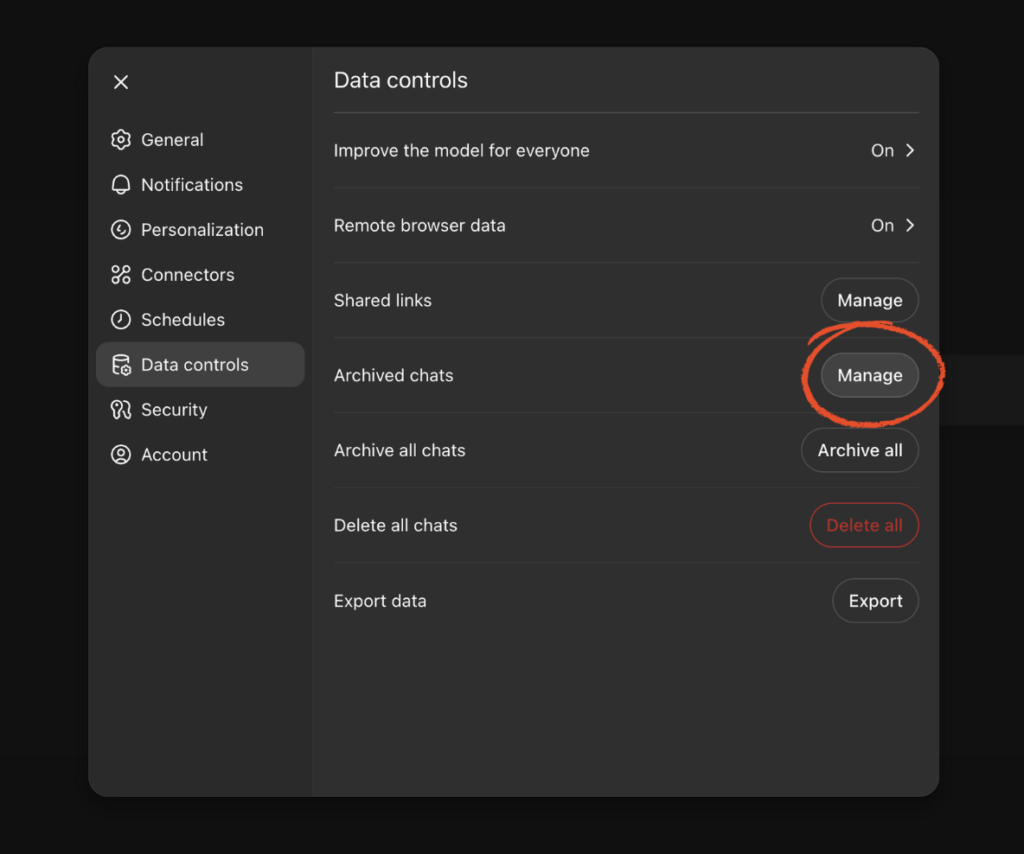
- Now, on the “Data controls” tab, select “Manage” to the right of “Archived Chats”:
- You can now view all your archived chats here. You can view each chat by simply clicking on it. To the right of each chat, you have the option to delete it, or unarchive it:

How To Access Archived Chats On ChatGPT (Mobile)?
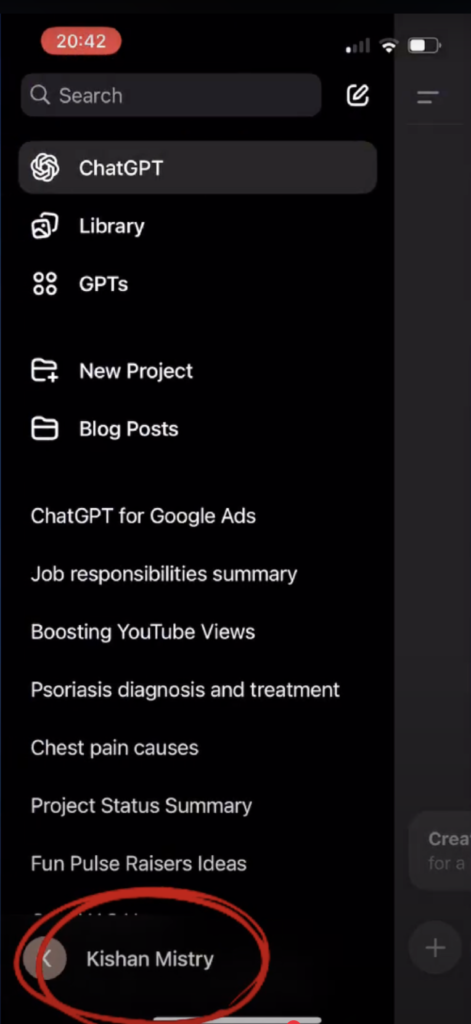
- On the sidebar on the ChatGPT app, select your profile at the bottom:
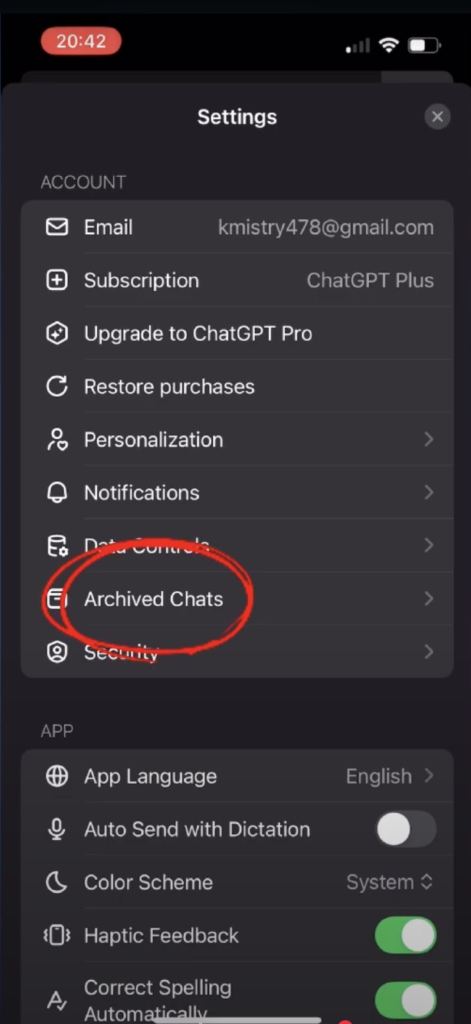
- Then select “Archived Chats”:
- From here, you can view all the chats you have archived. If you select any of them, you have the option to view it, unarchive it and delete it: